
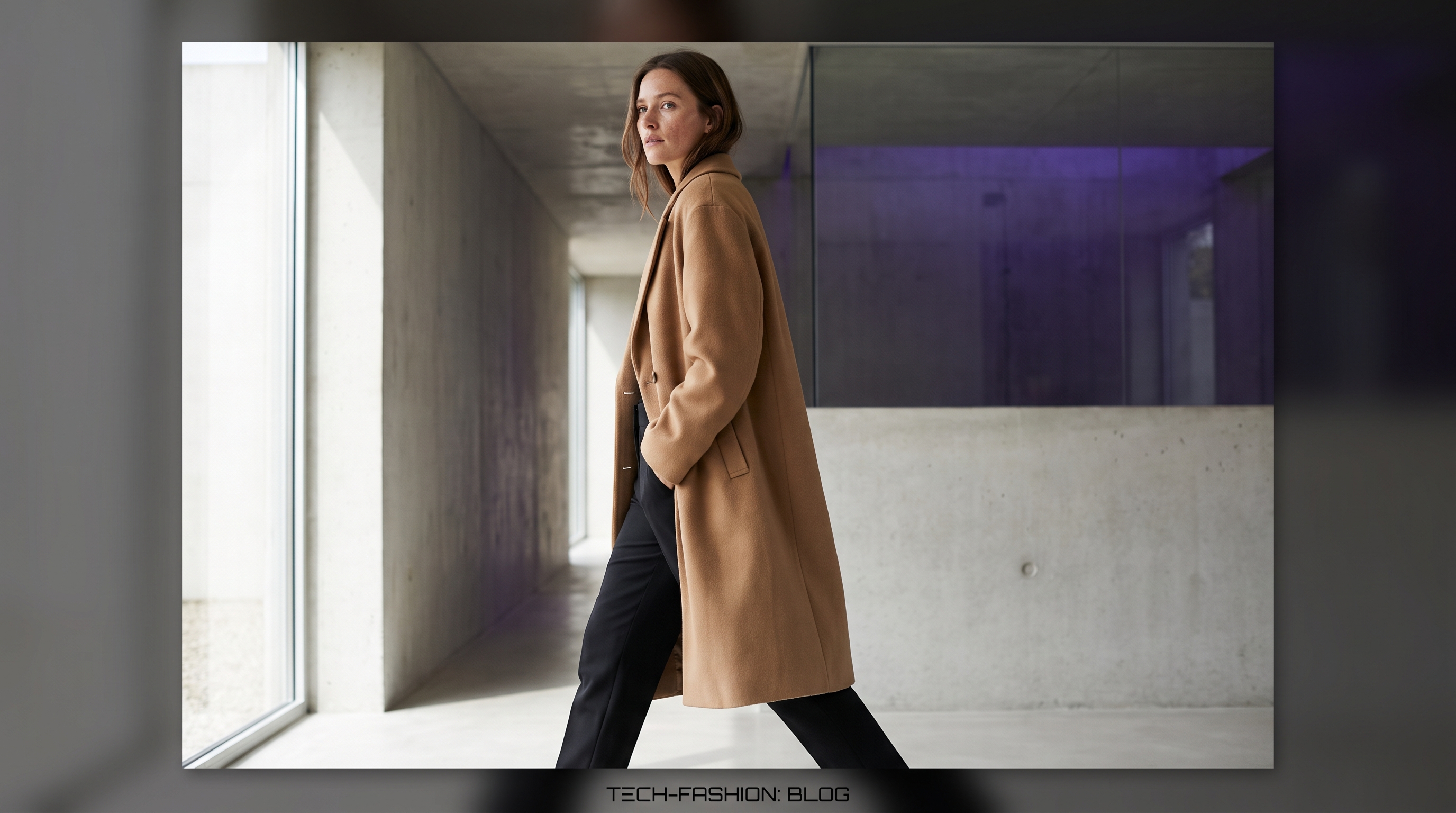
Women's ready-to-wear catalogues need volume and consistency. AI product shoots let you keep a refined, minimal campaign look — camel coats, black trousers, soft daylight — without booking a studio for every SKU.
This guide walks through capture, try-on, quality control, and channel exports so your PDP images look premium and convert.
End-to-end RTW pipeline
- Capture flat-lays or mannequin shots with even light
- Virtual Try-On onto a consistent model identity
- Generate colourways and seasonal backgrounds
- Face refinement only when needed (keep skin natural)
- Upscale and export for Shopify / Amazon / Meta ads
Tips by garment type
- Coats & blazers: show lapel, buttons, and length; use full-body poses
- Knitwear: protect stitch texture; avoid over-smoothing fabric
- Trousers: include hem and shoe crop for length clarity
- Dresses: match pose to length; avoid clipping the hem
Quality bar for hero stills
Use Oufl Image Pro for heroes. Aim for natural skin, accurate fabric drape, and clean negative space for text overlays. Prefer soft daylight over harsh neon “tech” lighting.
Image SEO & file naming
Name files with product + colour + view (e.g. camel-wool-coat-front.webp). Write alt text that describes the garment and colour — not “AI generated image.”
Mistakes to avoid
- Different face on every SKU in the same drop
- Inventing logos or changing print placement
- Publishing soft, blurry inputs without upscaling
FAQ
Can AI handle sheer or shiny fabrics?
Yes with careful flat-lays. Shoot extra detail crops of sheen and lace so the model can preserve texture.